The File Browser
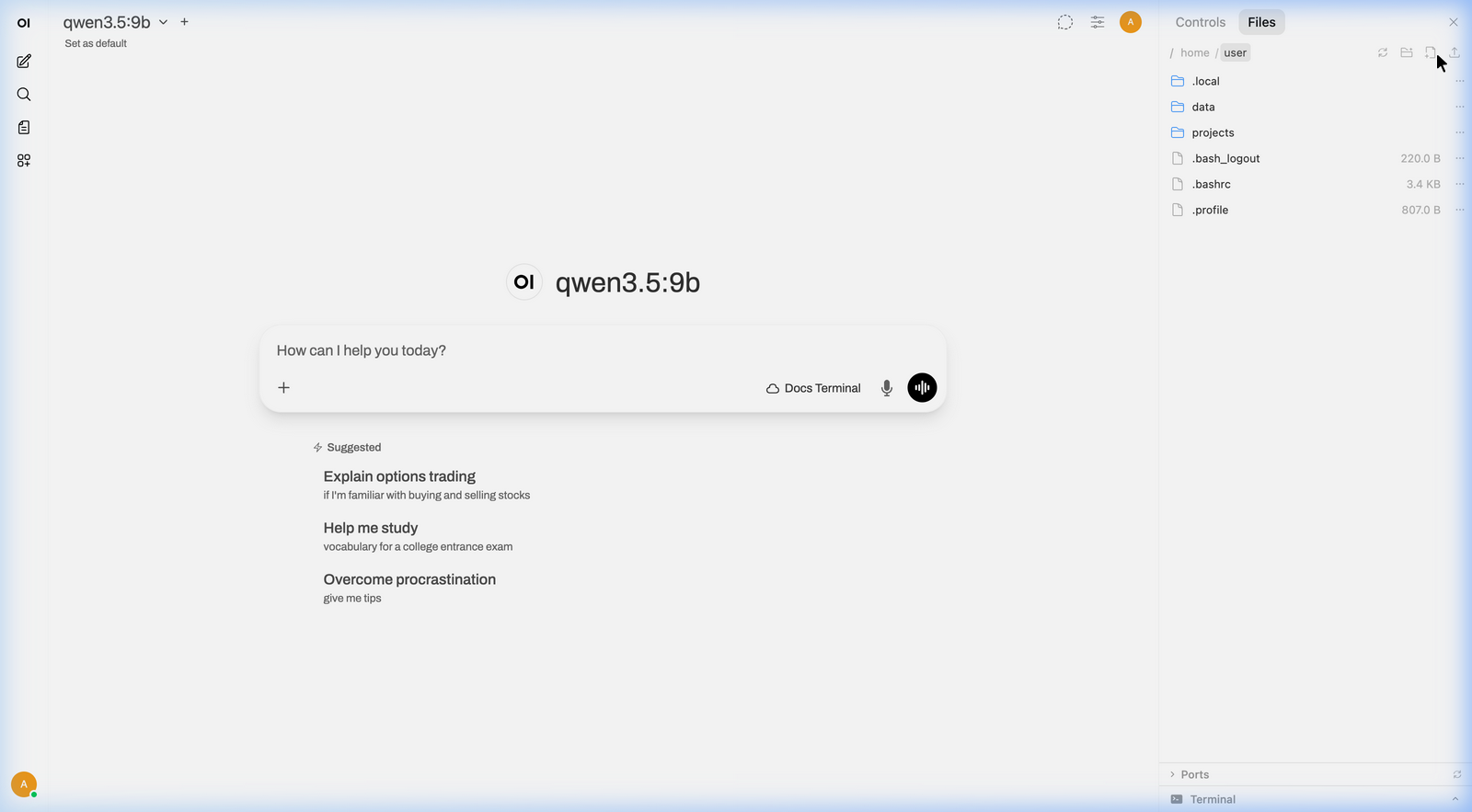
When Open Terminal is connected, a file browser appears in the sidebar of your chat. It works like the file explorer on your computer — you can browse folders, open files, upload things, and download results. Everything the AI creates shows up here automatically.
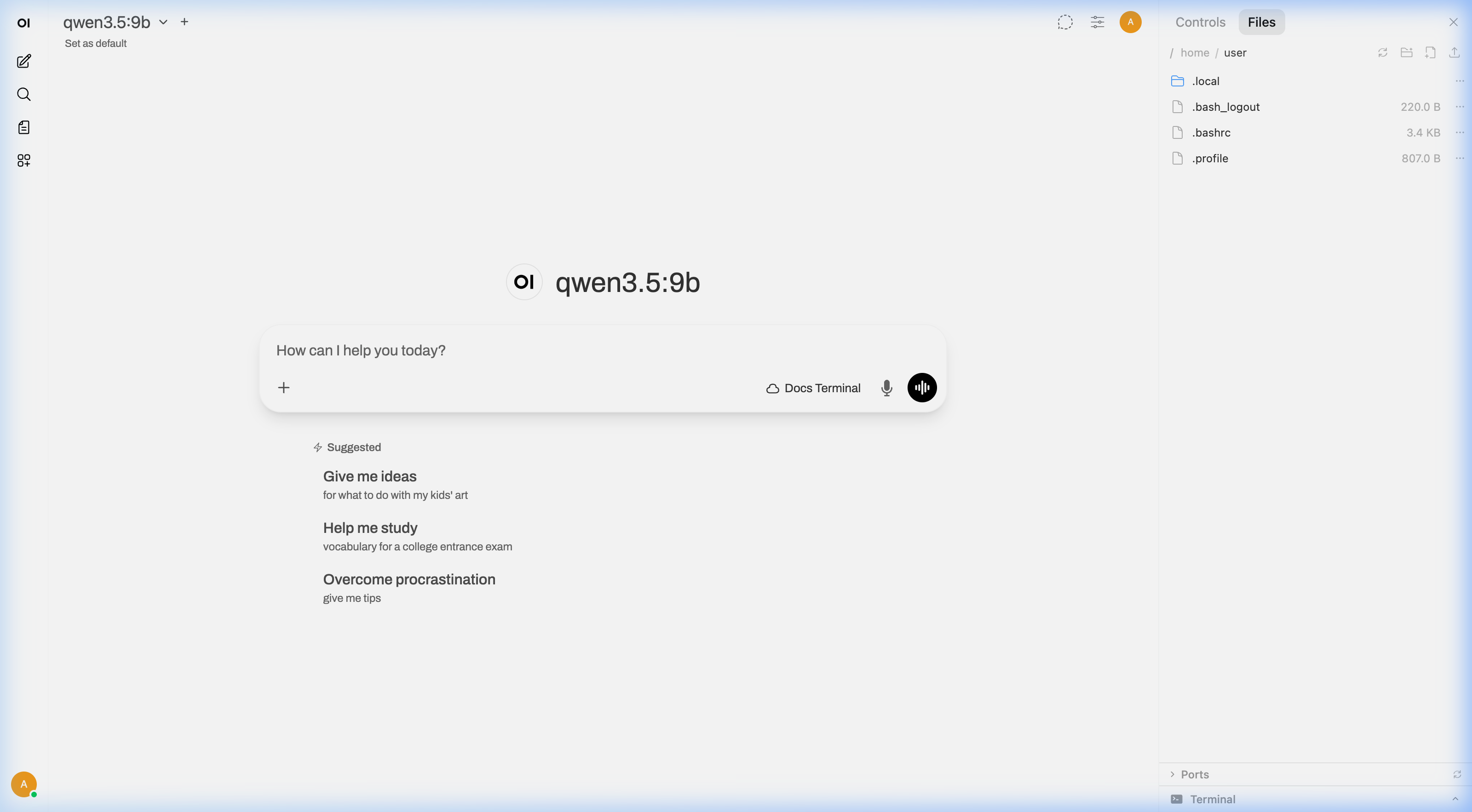
Browsing
Click folders to navigate, and click files to preview them. A breadcrumb bar at the top shows where you are.
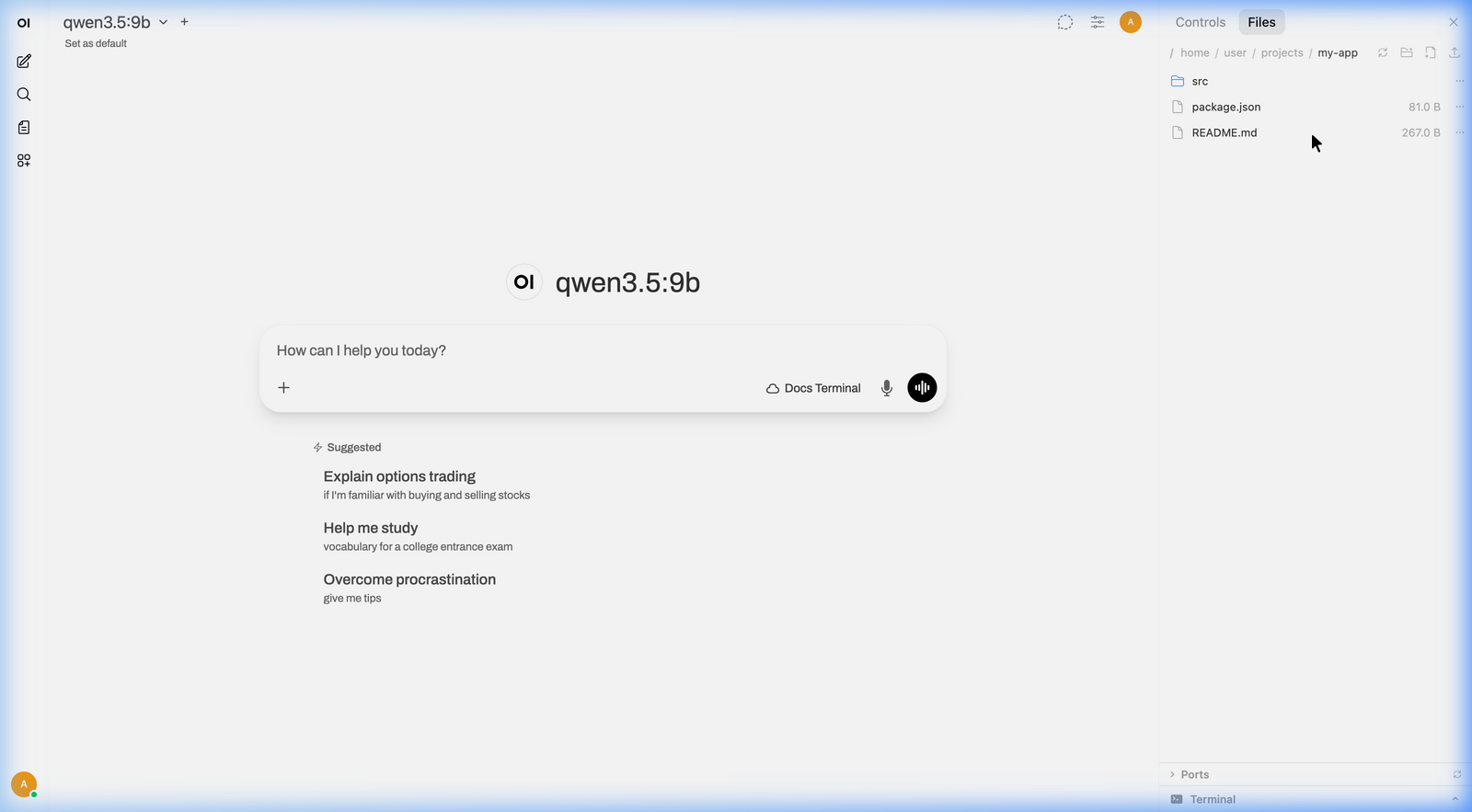
Sorting
Use the toolbar above the file list to sort by Name or Date Modified, ascending or descending. Folders always group ahead of files, so the sort order only reorders entries within each group. Each row shows its modified time next to the size, making it easier to find the latest output the AI just dropped into a working directory.
Previewing files
Click any file to see a preview. Different file types display differently:
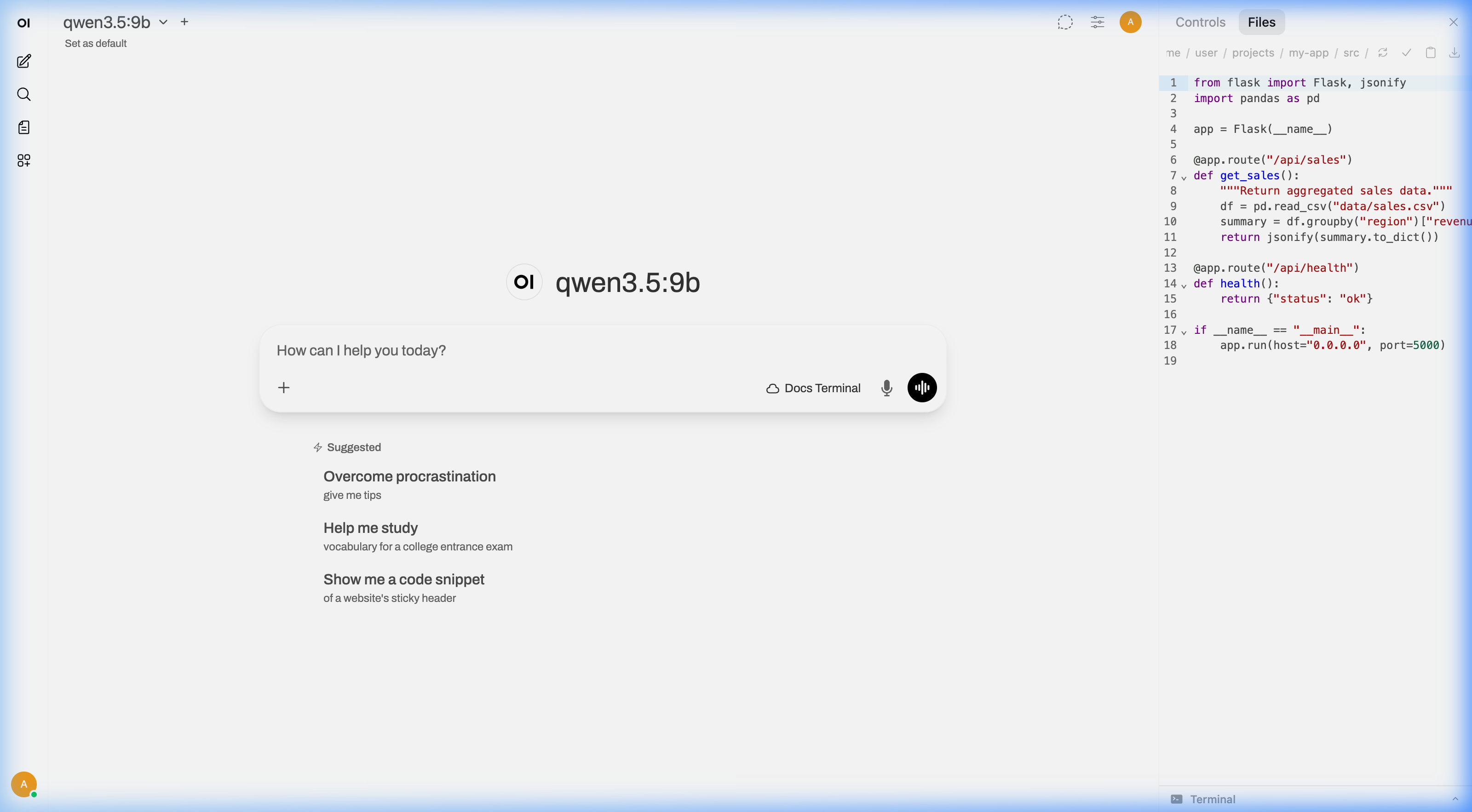
Text and code
Source code and text files are shown with syntax highlighting and line numbers.
PDFs
PDF documents render directly in the browser — you can read them without downloading.
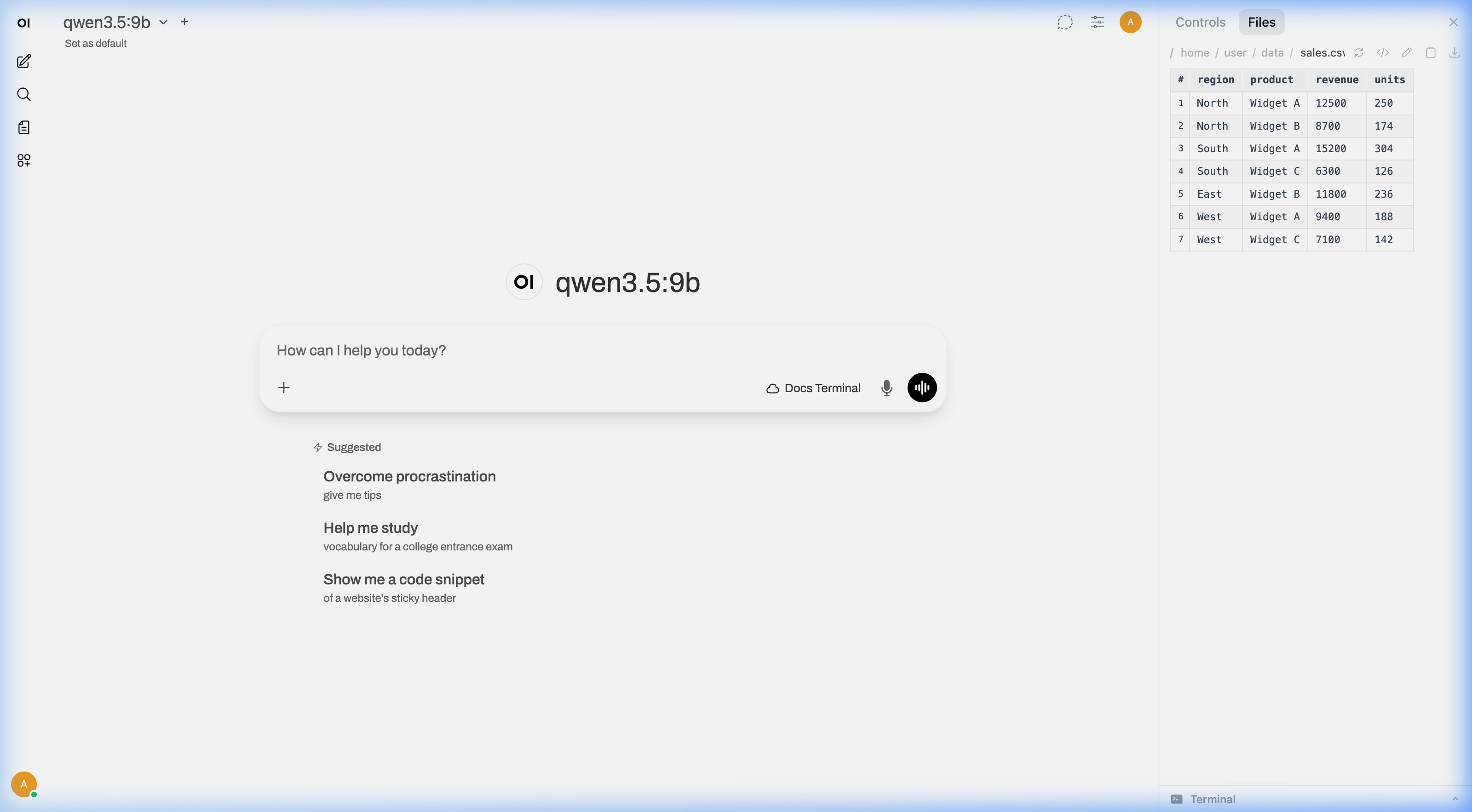
Spreadsheets (CSV, TSV)
Data files render as formatted tables with headers and clean rows — much easier to read than raw comma-separated text.
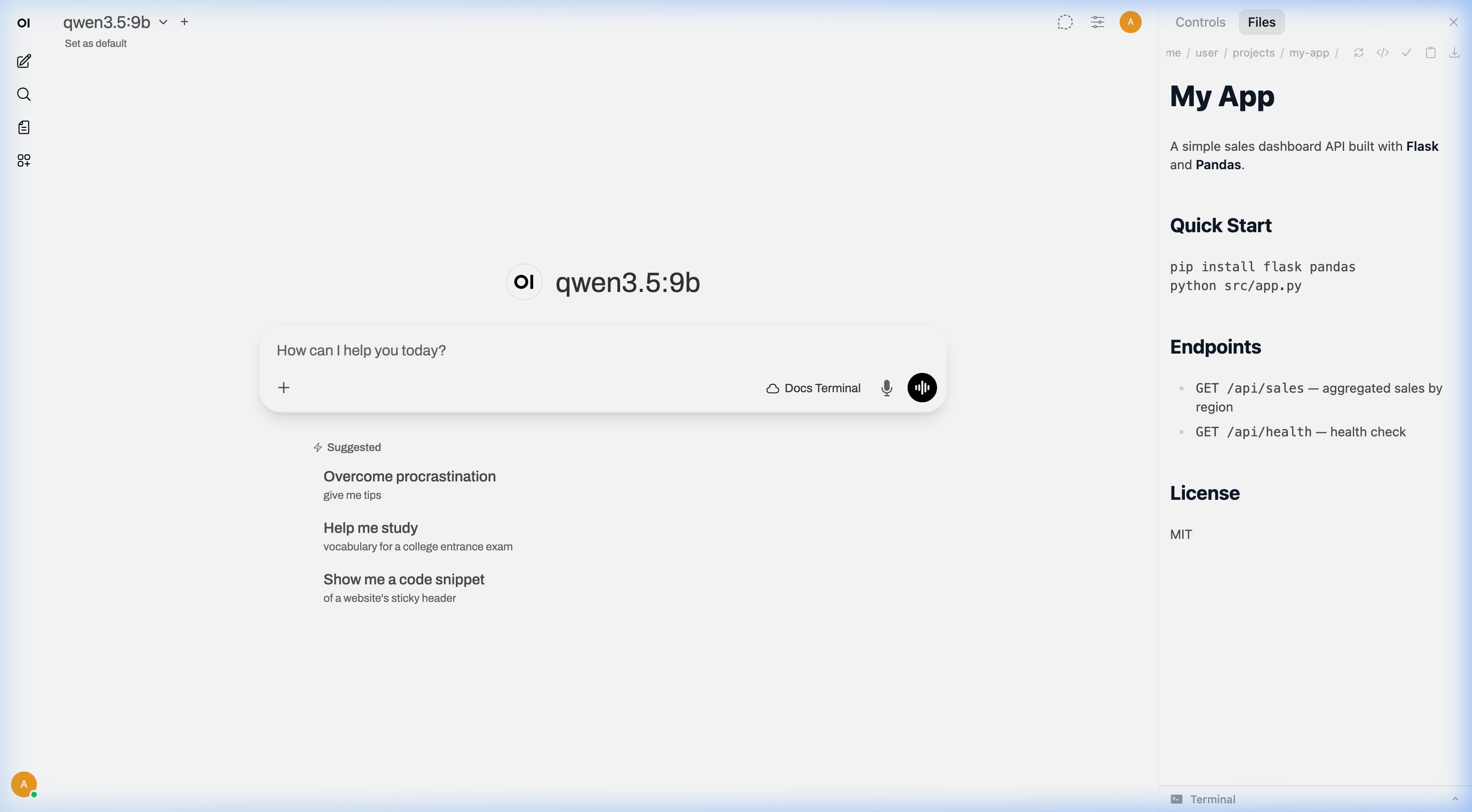
Markdown
Markdown files show a rendered preview (with formatted headings, links, bold text) and a toggle to switch to raw source.
Images
Images display inline at a comfortable size.
Uploading files
Drag and drop files from your computer directly onto the file browser to upload them. This is how you share data with the AI — drop a spreadsheet, a PDF, an image, or any file you want the AI to work with.
Navigate to the folder you want first, then drag and drop. The file uploads to whatever directory you're currently viewing.
Downloading files
Click the download button on any file to save it to your computer. This is how you get results back: after the AI generates a chart, creates a spreadsheet, processes an image, or writes a report, just download it.
Editing files
Click the edit icon on any text file to open it in an editor. Make your changes and save. This is handy for quick fixes — editing a config value, correcting a typo, or tweaking something the AI generated.
Creating and deleting
You can create new files and folders, or delete things you don't need anymore, directly from the file browser.
Good to know
When the AI creates or changes files, the file browser refreshes automatically. You don't need to manually reload.
The file browser remembers which folder you were in, even when you switch between chats or terminals.
If you have more than one terminal connected, switching between them in the dropdown updates the file browser to show that terminal's files.
More things to try
- Analyze documents & data → — drag in a spreadsheet or PDF and ask about it
- Run code from chat → — the AI creates files you can see here
- Build & preview websites → — the files the AI creates appear in the browser