Llama.cpp
Overview
Open WebUI makes it simple and flexible to connect and manage a local Llama.cpp server to run efficient, quantized language models. Whether you’ve compiled Llama.cpp yourself or you're using precompiled binaries, this guide will walk you through how to:
- Set up your Llama.cpp server
- Load large models locally
- Integrate with Open WebUI for a seamless interface
Let’s get you started!
Step 1: Install Llama.cpp
To run models with Llama.cpp, you first need the Llama.cpp server installed locally.
You can either:
- 📦 Download prebuilt binaries
- 🛠️ Or build it from source by following the official build instructions
After installing, make sure llama-server is available in your local system path or take note of its location.
Step 2: Download a Supported Model
You can load and run various GGUF-format quantized LLMs using Llama.cpp. One impressive example is the DeepSeek-R1 1.58-bit model optimized by UnslothAI. To download this version:
- Visit the Unsloth DeepSeek-R1 repository on Hugging Face
- Download the 1.58-bit quantized version – around 131GB.
Alternatively, use Python to download programmatically:
# pip install huggingface_hub hf_transfer

from huggingface_hub import snapshot_download

snapshot_download(
    repo_id = "unsloth/DeepSeek-R1-GGUF",
    local_dir = "DeepSeek-R1-GGUF",
    allow_patterns = ["*UD-IQ1_S*"],  # Download only 1.58-bit variant
)
This will download the model files into a directory like:
DeepSeek-R1-GGUF/
└── DeepSeek-R1-UD-IQ1_S/
    ├── DeepSeek-R1-UD-IQ1_S-00001-of-00003.gguf
    ├── DeepSeek-R1-UD-IQ1_S-00002-of-00003.gguf
    └── DeepSeek-R1-UD-IQ1_S-00003-of-00003.gguf
📍 Keep track of the full path to the first GGUF file — you’ll need it in Step 3.
Step 3: Serve the Model with Llama.cpp
Start the model server using the llama-server binary. Navigate to your llama.cpp folder (e.g., build/bin) and run:
./llama-server \
  --model /your/full/path/to/DeepSeek-R1-UD-IQ1_S-00001-of-00003.gguf \
  --port 10000 \
  --ctx-size 1024 \
  --n-gpu-layers 40
🛠️ Tweak the parameters to suit your machine:
- --model: Path to your .gguf model file
- --port: 10000 (or choose another open port)
- --ctx-size: Token context length (can increase if RAM allows)
- --n-gpu-layers: Layers offloaded to GPU for faster performance
Once the server runs, it will expose a local OpenAI-compatible API (Chat Completions) on:
http://127.0.0.1:10000
Open WebUI also supports the experimental Open Responses specification for providers that implement it.
Step 4: Connect Llama.cpp to Open WebUI
To control and query your locally running model directly from Open WebUI:
- Open Open WebUI in your browser
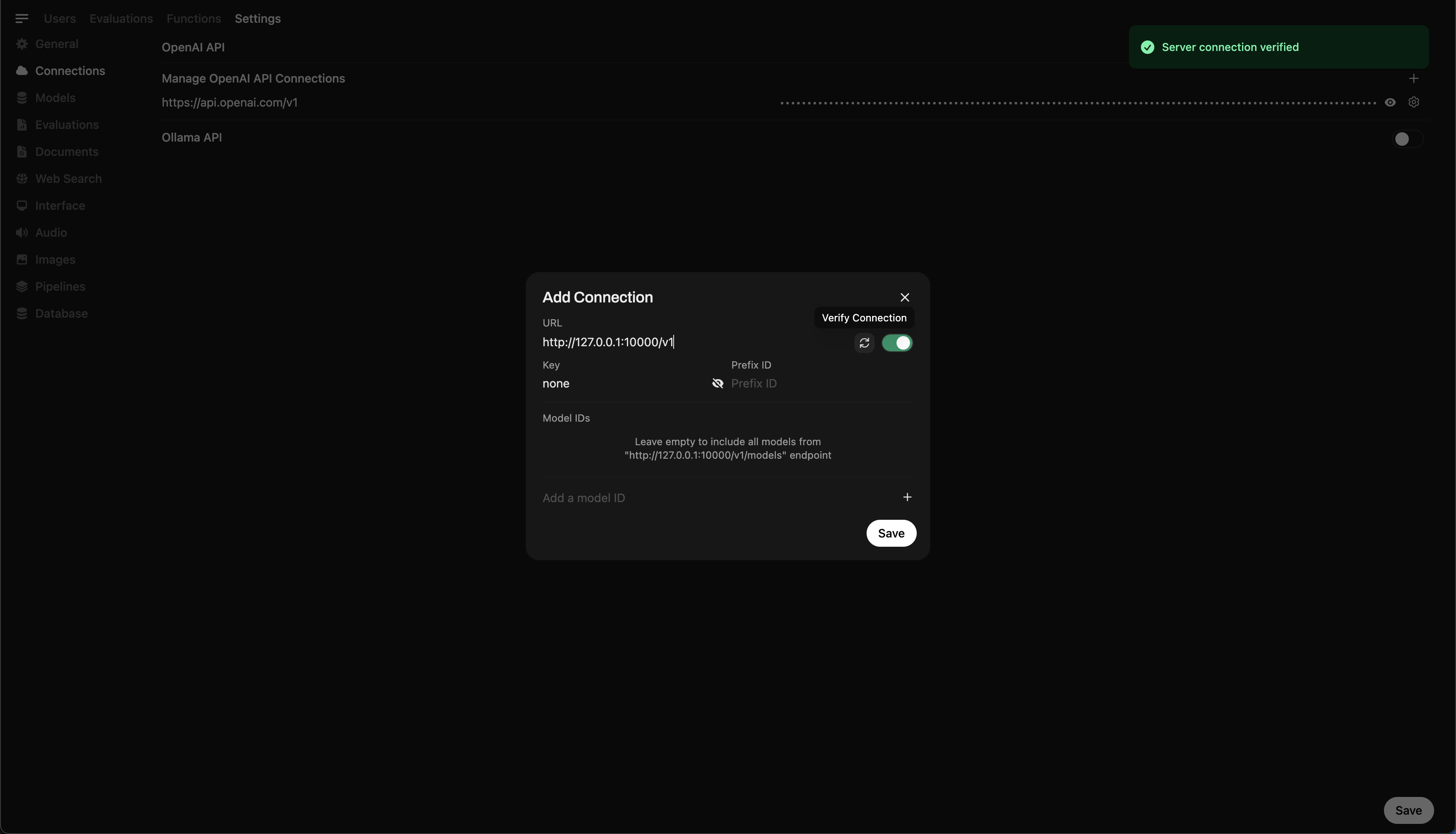
- Go to ⚙️ Admin Settings → Connections → OpenAI.
- Click ➕ Add Connection.
- Set the following (under Standard / Compatible if tabs are visible):
- URL:
http://127.0.0.1:10000/v1(Or usehttp://host.docker.internal:10000/v1if running WebUI inside Docker. Note the/v1at the end!) - API Key:
none(leave blank or type specific key if configured) - Provider: pick
llama.cppfrom the Provider dropdown. This unlocks the loaded-model indicator and the admin Eject button in the model selector — see Unloading Loaded Models below. Leave atDefaultif you do not need that feature.
- URL:
💡 Once saved, Open WebUI will begin using your local Llama.cpp server as a backend!
If your Llama.cpp server is slow to initialize or you see timeout errors, you can increase the model list fetch timeout:
# Increase timeout for slower model loading (default is 10 seconds)
AIOHTTP_CLIENT_TIMEOUT_MODEL_LIST=30
If you've saved an unreachable URL and the UI becomes unresponsive, see the Model List Loading Issues troubleshooting guide.
Unloading Loaded Models
Once a model is held in memory by your llama-server instance, Open WebUI marks it with a green "Loaded" indicator in the model selector. Admins also see an Eject button on the row that unloads the model without restarting the server — it calls POST /api/models/unload, which in turn hits llama.cpp's POST /models/unload endpoint on the OpenAI-compatible connection's root URL.
For this to work, the matching connection in Admin Settings → Connections → OpenAI must have its Provider set to llama.cpp (Open WebUI uses that hint to pick the correct unload mechanism). Connections left at the default OpenAI-compatible provider type return an error when an admin attempts to unload a model.
Quick Tip: Try Out the Model via Chat Interface
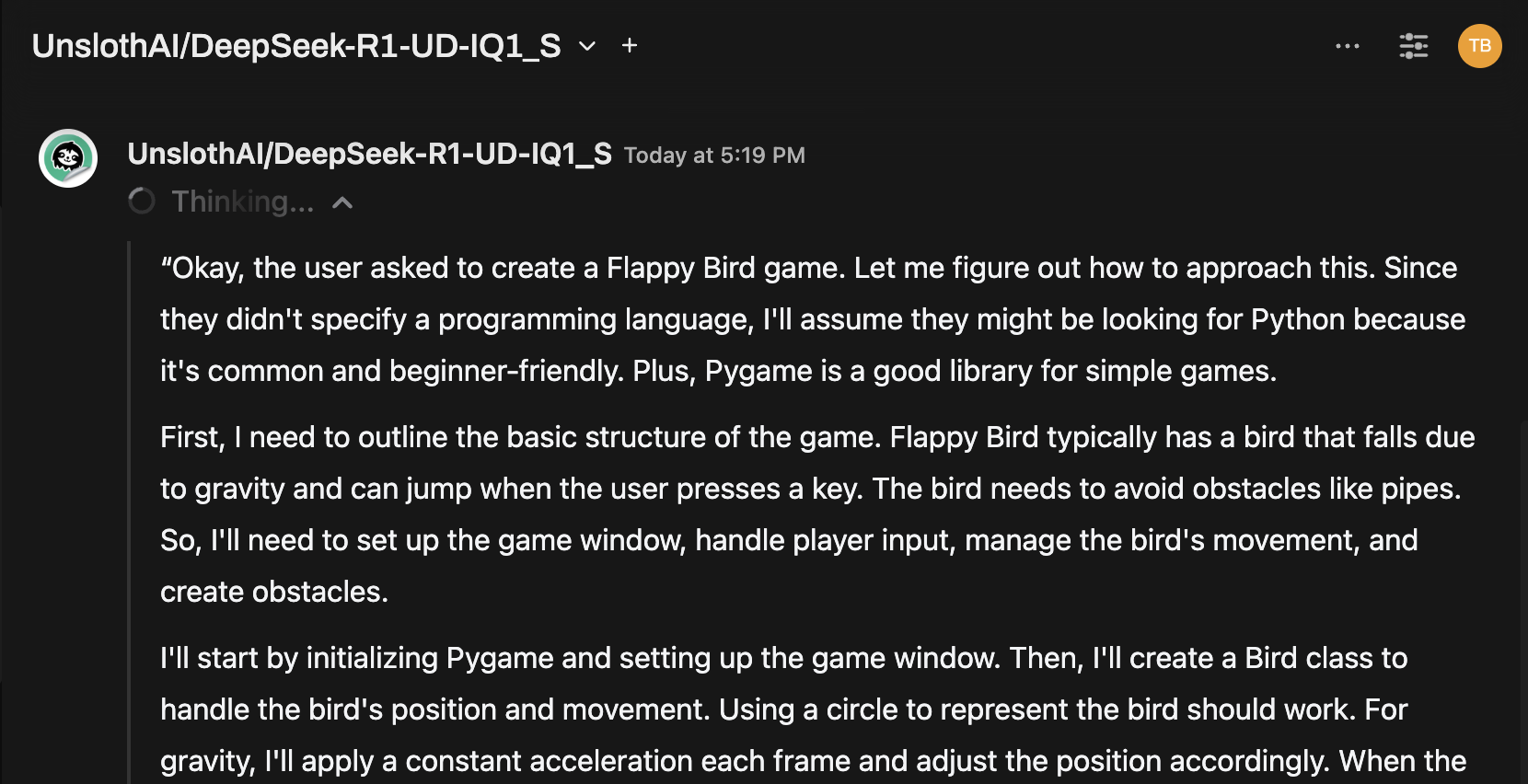
Once connected, select the model from the Open WebUI chat menu and start interacting!
You're Ready to Go!
Once configured, Open WebUI makes it easy to:
- Manage and switch between local models served by Llama.cpp
- Use the OpenAI-compatible API with no key needed
- Experiment with massive models like DeepSeek-R1 — right from your machine!
🚀 Have fun experimenting and building!